 DASH:Gen
What you get
A ZIP in Apache Superset’s own export format for version 6: the database connection, the dataset with its metrics, one YAML file per chart, and the dashboard with its layout. It is exactly what Apache Superset writes when you export a dashboard, so importing it is the ordinary import — no API token, no admin rights on anything but your own instance.
Start from your own dataset export
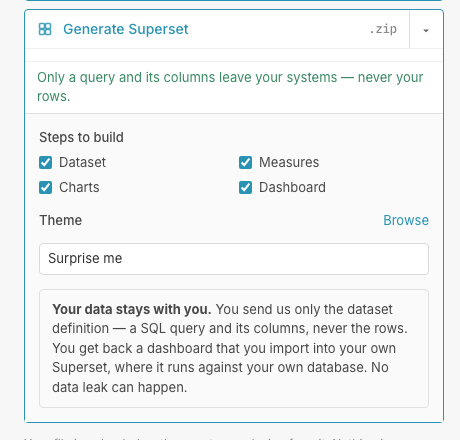
This is the route that keeps your data where it is. In Apache Superset, open Datasets, select the dataset and export it. The ZIP you get holds the dataset definition — the table or SQL query and its columns — and the database connection it runs against. It holds no rows, and that is all that is uploaded.
Because the connection travels in the bundle and comes back unchanged, the imported charts query the database your Apache Superset already knows. You can also start from a data file; the charts are then designed from its rows, and the dataset in the bundle expects a table with those columns in the database the bundle names, which you may have to repoint after import.
Step by step
- Drop the export ZIP into the window. Uploading a dataset export takes an account; a plain data file does not, and builds all four steps from its rows.
- Say what the dashboard is for in a sentence.
- Open the settings of Generate Apache Superset and choose the steps to build. Dataset, measures, charts and dashboard are separate. A step you leave unticked is carried over from the export you uploaded rather than designed again, so an existing set of metrics can stay exactly as it is.
- Choose a theme from forty, or write your own CSS theme in the library.
- Generate, look at it, download.
- Import it. In Apache Superset, go to Dashboards, choose Import dashboard and select the ZIP. If the connection needs a password, Apache Superset asks for it during the import; it is never part of the bundle.
Look at it before you import
After a run the window shows the dashboard the agents designed. You can switch a chart to another type or pin one of your Handlebars chart templates to it, then download again. None of that runs an agent, so none of it is charged. Up to ten templates of your own stay private until you publish them. This surface comes with an account: without one, the run ends in the download.
Without an account, and with one
One Apache Superset dashboard a day needs no sign-up and no card: one data file of up to 10 MB, all four steps built from its rows, and the bundle to download. It is only useful against a database you have connected — the dataset in it expects a table with those columns — so it is worth trying on an instance you already run.
An account is what lets you upload a dataset export as the source, and that is the difference that matters: the connection then travels in the bundle and comes back unchanged, and steps you leave unticked are carried over from the export instead of designed again. It also adds the preview described above, bigger files and more runs a day. The price of a run is on the price list.
Questions
Does DASH:Gen upload my rows to build a Superset dashboard?
Not when you start from a dataset export: the ZIP Apache Superset writes holds the dataset definition and its database connection, and no rows.
Does the DASH:Gen Superset bundle contain my database password?
No. If the connection needs one, Apache Superset asks for it during the import; it is never part of the bundle.
What does a DASH:Gen account add for Apache Superset?
Uploading a dataset export as the source, steps carried over from it unchanged, the preview before download, bigger files and more runs a day.
Try it without an account
Three HTML dashboards, one Power BI report and one Apache Superset bundle a day need no sign-up and no card. No file to hand? Pick Sales under the drop zone.
Open DASH:Gen